
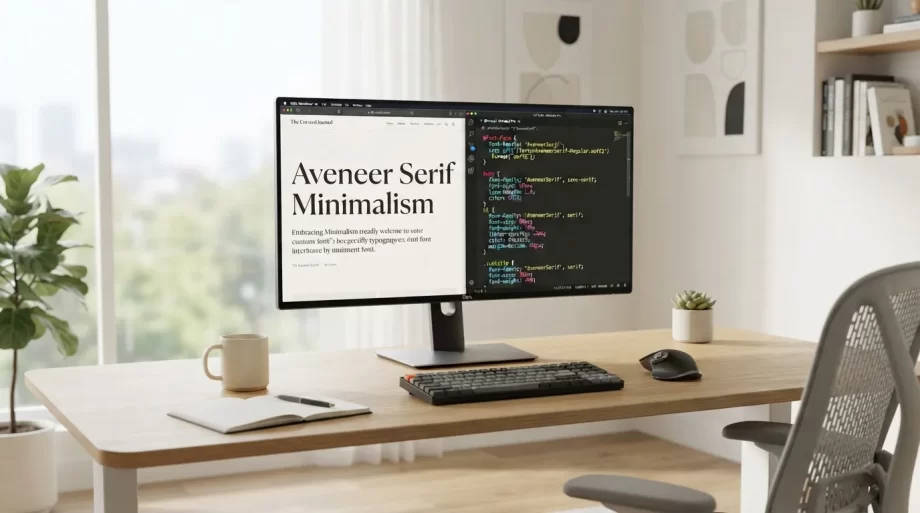
Default system fonts get the job done, but they rarely make your website stand out. A custom font can instantly change how professional, modern, or unique your site feels — and the good news is, adding one takes just a few lines of HTML and CSS. In this guide, we’ll walk through every method: Google Fonts, self-hosted font files, and CSS @font-face, plus best practices for performance and fallbacks.
Why Custom Fonts Matter
Typography is one of the most underrated design decisions on the web. Before you dive into the code, here’s why it’s worth the extra five minutes:
- Brand identity — a distinctive typeface makes your site instantly recognizable
- Readability — the right font improves how comfortably visitors read your content
- Consistency — matching fonts across your logo, marketing materials, and website builds trust
- Performance impact — done wrong, fonts can slow your site down significantly, so loading them correctly matters
Method 1: Using Google Fonts (Easiest Option)
Google Fonts is free, hosted on Google’s fast CDN, and requires no file uploads. This is the best option for most websites.
Step 1 — Choose your font Go to Google Fonts, pick a typeface, and select the weights you need (e.g., Regular 400, Bold 700).
Step 2 — Add the link tag to your HTML
<head>
  <link rel="preconnect" href="https://fonts.googleapis.com">
  <link rel="preconnect" href="https://fonts.gstatic.com" crossorigin>
  <link href="https://fonts.googleapis.com/css2?family=Poppins:wght@400;700&display=swap" rel="stylesheet">
</head>
Step 3 — Apply it in your CSS
body {
  font-family: "Poppins", sans-serif;
}
That’s it — the font will now load across your entire site.
Method 2: Self-Hosting Font Files with @font-face
Self-hosting gives you more control over performance and privacy (no third-party requests to Google’s servers), which is a growing priority for GDPR-conscious sites.
Step 1 — Download your font files Get .woff2 and .woff formats — these are the most widely supported and lightweight.
Step 2 — Define the font with @font-face
@font-face {
  font-family: "MyCustomFont";
  src: url("/fonts/mycustomfont.woff2") format("woff2"),
       url("/fonts/mycustomfont.woff") format("woff");
  font-weight: 400;
  font-style: normal;
  font-display: swap;
}
Step 3 — Use it like any other font
h1, h2, h3 {
  font-family: "MyCustomFont", sans-serif;
}
Best Practices for Performance and Fallbacks
Adding a custom font incorrectly is one of the most common causes of slow page loads. Keep these rules in mind:
- Always set
font-display: swap— this shows fallback text immediately instead of leaving a blank space while the font loads - Limit font weights — every additional weight (Regular, Bold, Italic) is a separate file to download; only load what you actually use
- Use
.woff2— it’s roughly 30% smaller than older formats with no loss in quality - Always include a fallback stack — e.g.,
font-family: "Poppins", Arial, sans-serif;so the site still looks acceptable if the custom font fails to load - Preload critical fonts — for fonts used above the fold, add
<link rel="preload">to prioritize loading
<link rel="preload" href="/fonts/mycustomfont.woff2" as="font" type="font/woff2" crossorigin>
Common Mistakes to Avoid
- Loading 5+ font weights when only 2 are actually used on the page
- Forgetting
crossoriginon preconnect/preload tags, which silently breaks font loading - Using
@importin CSS to load Google Fonts — this blocks rendering and is slower than a<link>tag - Not testing how the site looks with the fallback font, in case the custom font fails to load on slow connections
Wrapping Up
Adding a custom font is a small change that makes a big visual difference — as long as it’s implemented with performance in mind. Start with Google Fonts if you want the simplest setup, or self-host if you need full control over privacy and loading behavior.
Struggling with a font that won’t load correctly, or want a second pair of eyes on your site’s typography setup? Get in touch with our team and we’ll help you sort it out.